Windows gamepad utility

Take full control of your gamepad.

Test, remap and customize supported controllers on Windows, including motion and touchpad support for virtual DualShock 4 output.

1.1.4 Latest Release Windows 10 / 11 · 64-bit USB & Bluetooth
1.1.4
DS4 / Xbox 360
Get aRacnid

Choose your download

Microsoft Store is recommended for most users. All packages are built for Windows 10 / 11 64-bit.

GitHub

Get the latest release setup file straight from the source repository.

Windows 10 / 11 · x64 · GitHub Releases
Download Setup

Portable ZIP

Extract the archive and run aRacnid without using the installer.

Windows 10 / 11 · x64 · 82 MB
Download ZIP

The Microsoft Store Web Installer is Microsoft-signed. GitHub Setup and Portable packages are currently unsigned and may show a SmartScreen warning.

Installation

Up and running in four steps

After your download starts, follow these steps to prepare virtual controller output.

01

Download

Install from Microsoft Store, run the GitHub Setup, or extract the Portable ZIP.

02

Launch aRacnid

Open the app and select or create your profile.

03

Manage Components

Open Advanced → Manage Components and install ViGEmBus and HidHide when needed.

04

Connect & Play

Connect a supported controller by USB or Bluetooth and choose your virtual output.

Features

Everything you need between your controller and the game

Real-time testing, flexible remapping, motion and touchpad support, and clean virtual controller output.

01

Live Tester, Motion & Touchpad

Watch buttons, sticks, triggers and DualShock 4 touch contacts react in real time, and forward supported motion data to virtual DualShock 4 output.

  • Gyroscope and accelerometer passthrough
  • Single- and dual-touch trails with click highlight
  • Normal, Mouse and Disabled touchpad modes
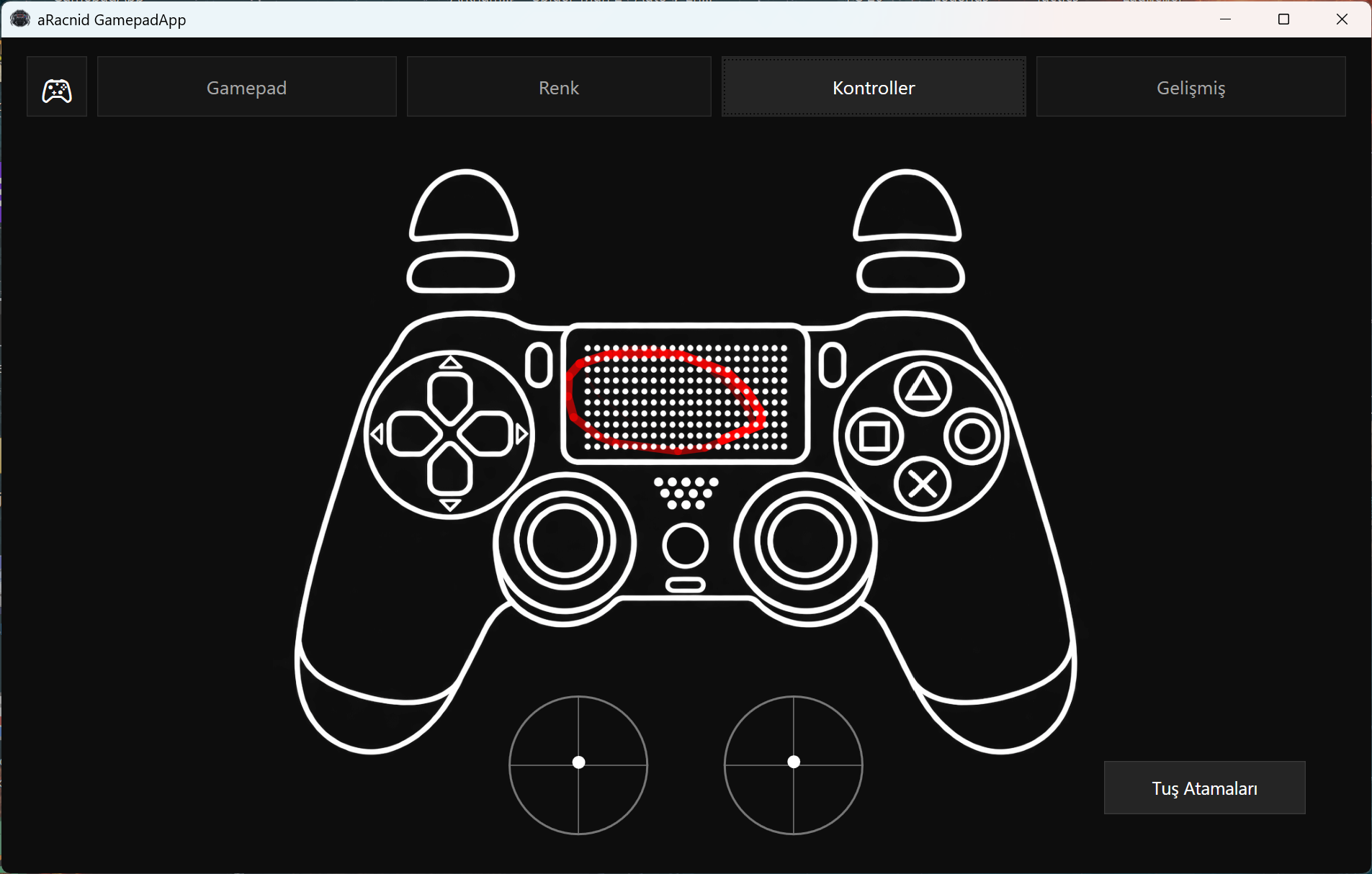
aRacnid Gamepad Tester showing a DualShock 4 touch trail and click highlight
02

Button Remapping

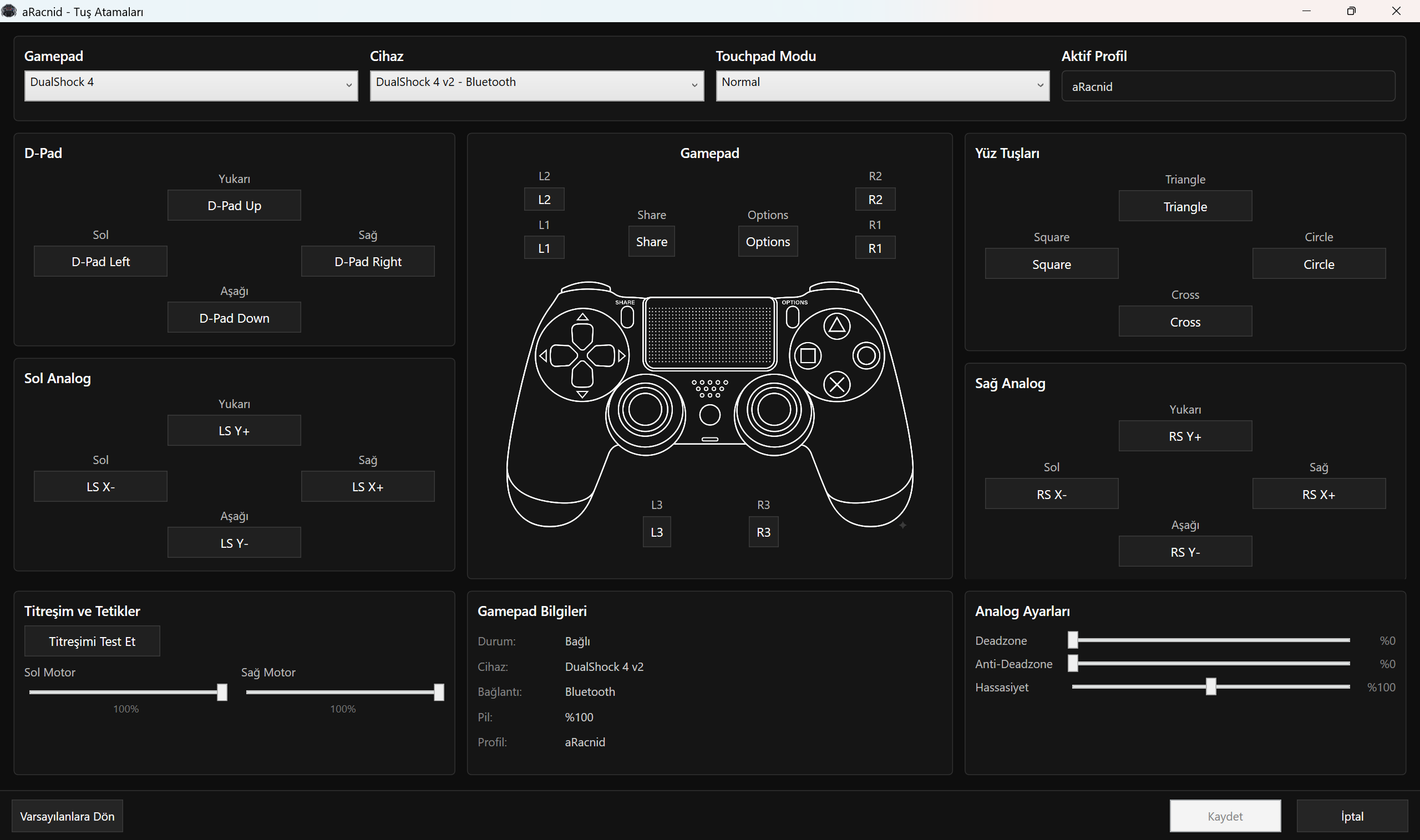
Map buttons, sticks, triggers and touchpad clicks to the output layout you want, then tune deadzone, anti-deadzone and sensitivity settings.

  • Touchpad-click binding capture
  • Analog deadzone and sensitivity controls
  • DS4 touchpad click to Xbox Back / View
aRacnid button mappings screen showing DualShock 4 touchpad mode and controls
03

Updates & Background Behavior

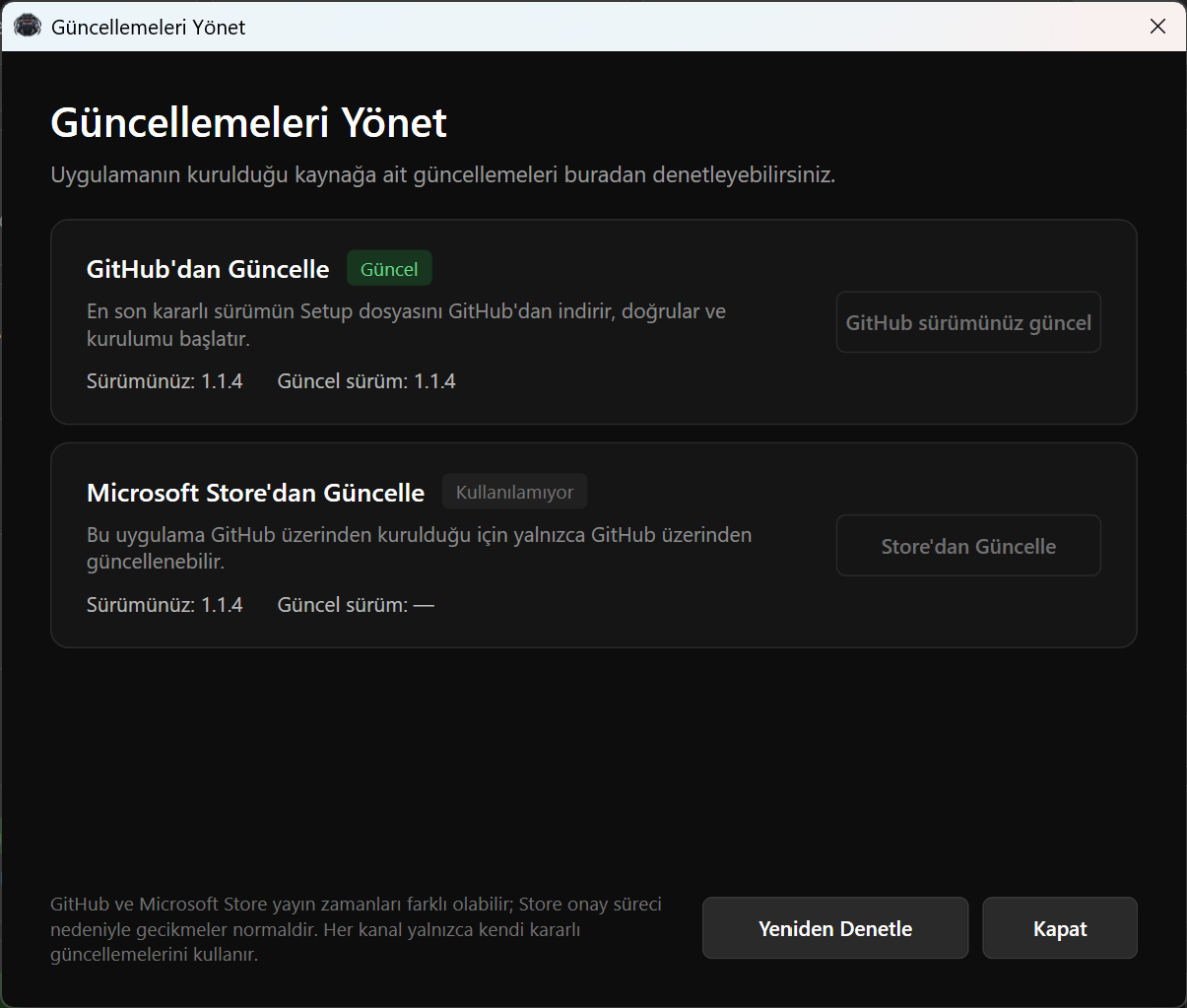
aRacnid detects whether it was installed from GitHub or Microsoft Store and uses only the matching stable update channel.

  • GitHub Setup download with SHA-256 verification
  • Microsoft Store updates through Windows Store APIs
  • Direct minimize-to-tray behavior and low-battery alerts
aRacnid distribution-aware GitHub and Microsoft Store update manager
04

Virtual DS4 or Xbox 360 Output

Use a supported physical controller and present it to games as a virtual DualShock 4 or Xbox 360 Controller.

Physical input
aRacnid
DS4 / Xbox 360
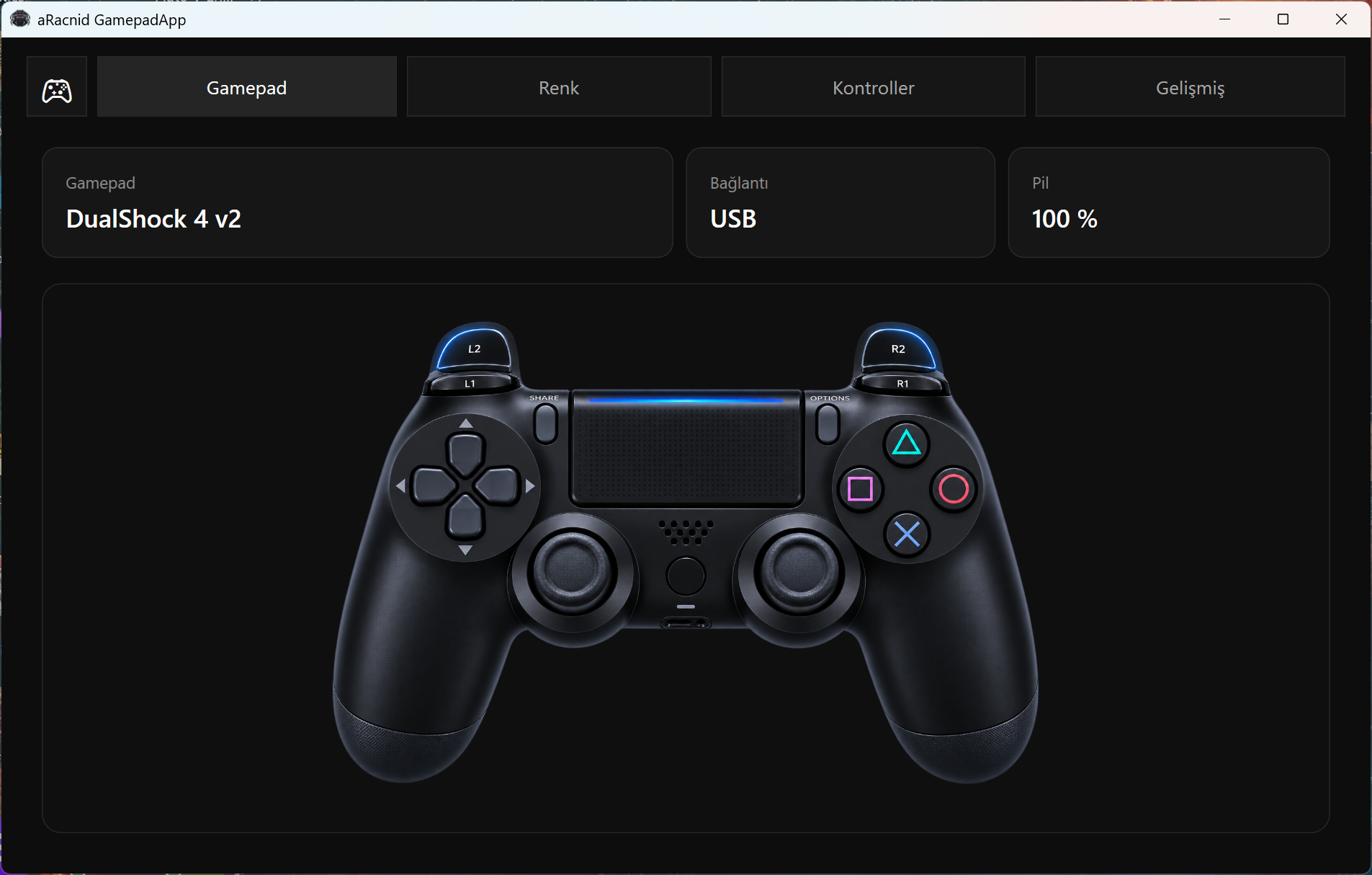
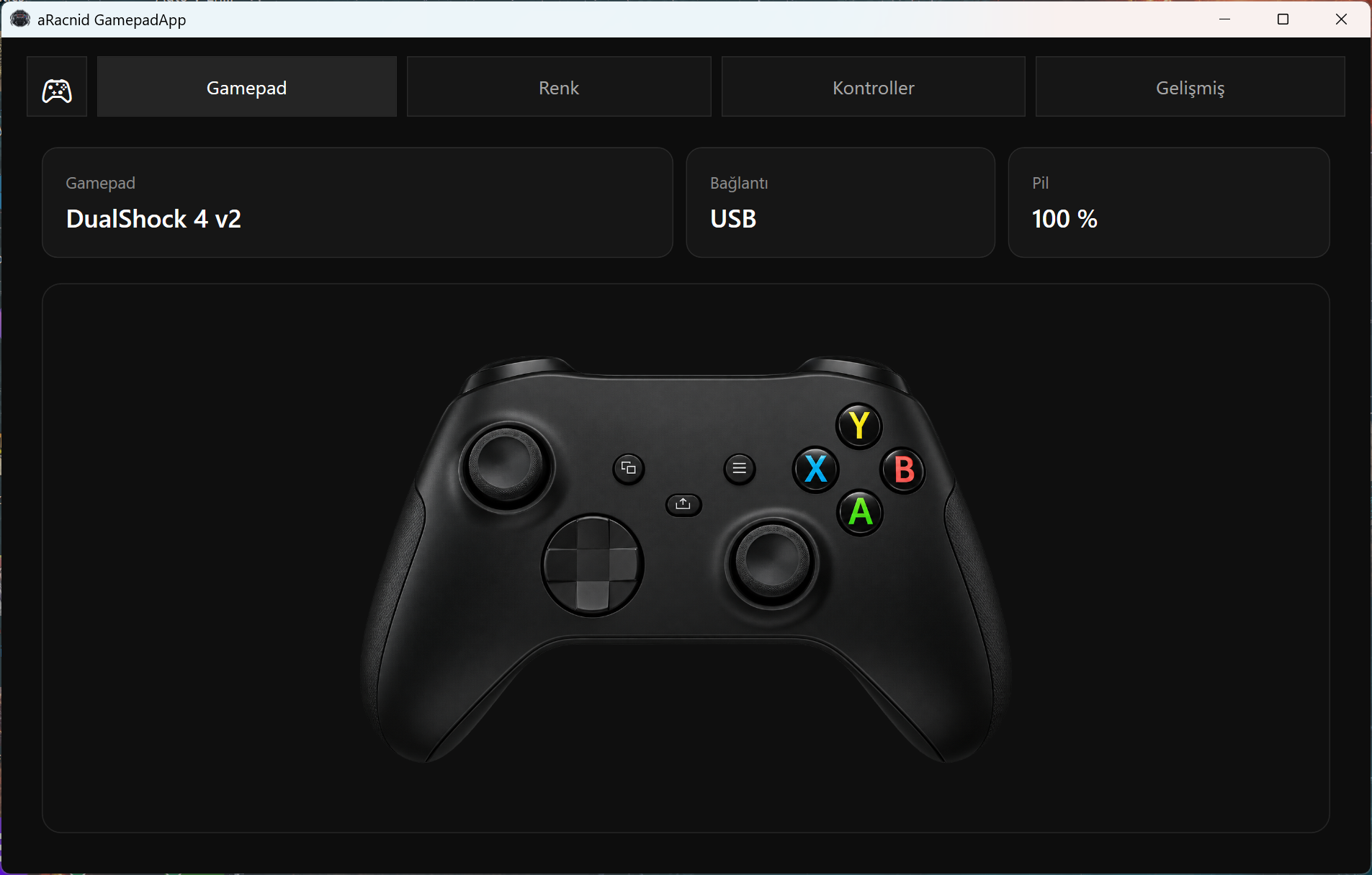
aRacnid main screen with DualShock 4
aRacnid main screen with Xbox layout
05

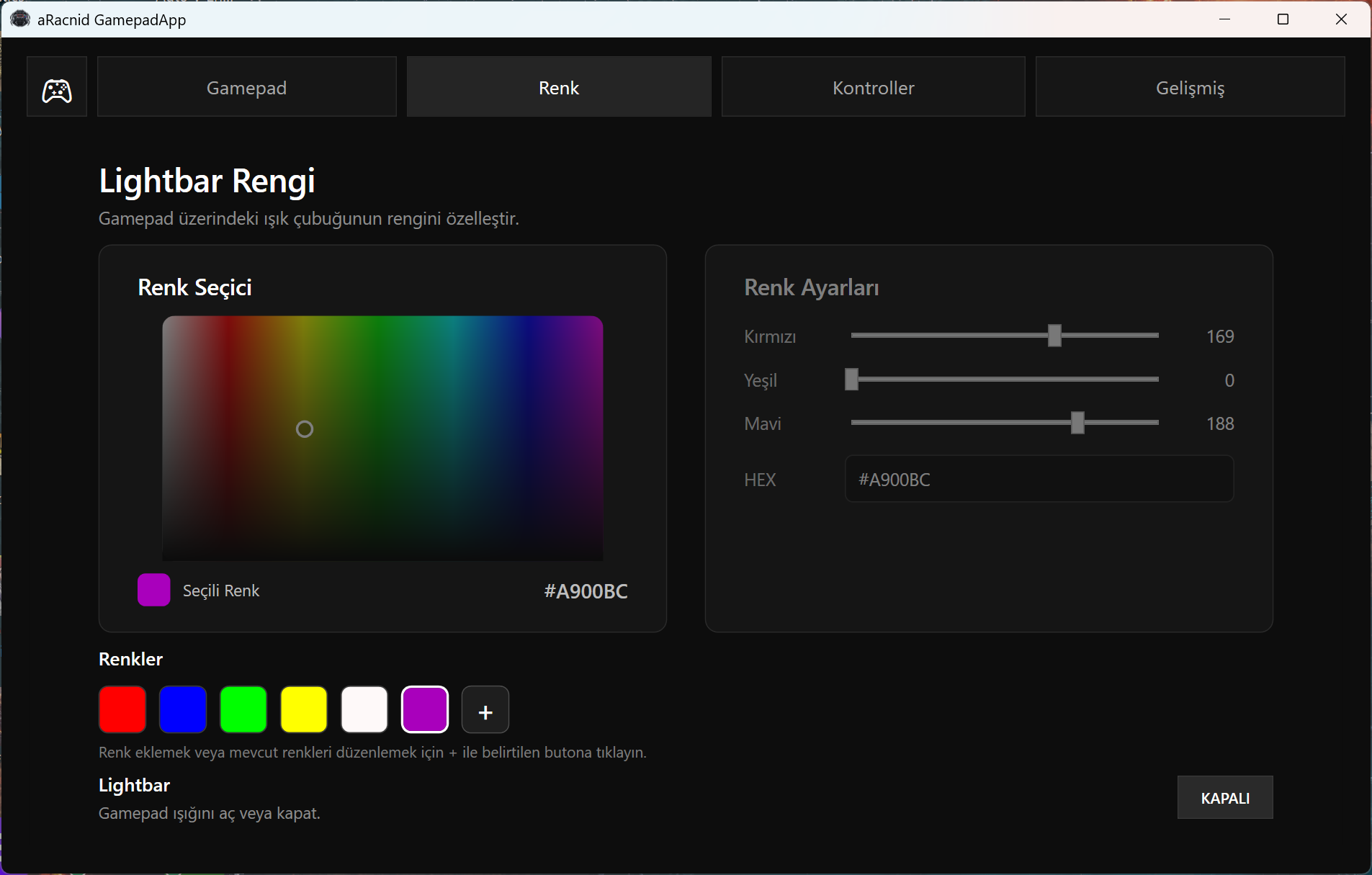
Lightbar Customization

Choose custom colors, save color presets and control the controller lightbar directly from aRacnid.

  • Color picker with RGB and HEX controls
  • Quick color presets
  • Lightbar on/off control
aRacnid Lightbar color customization
06

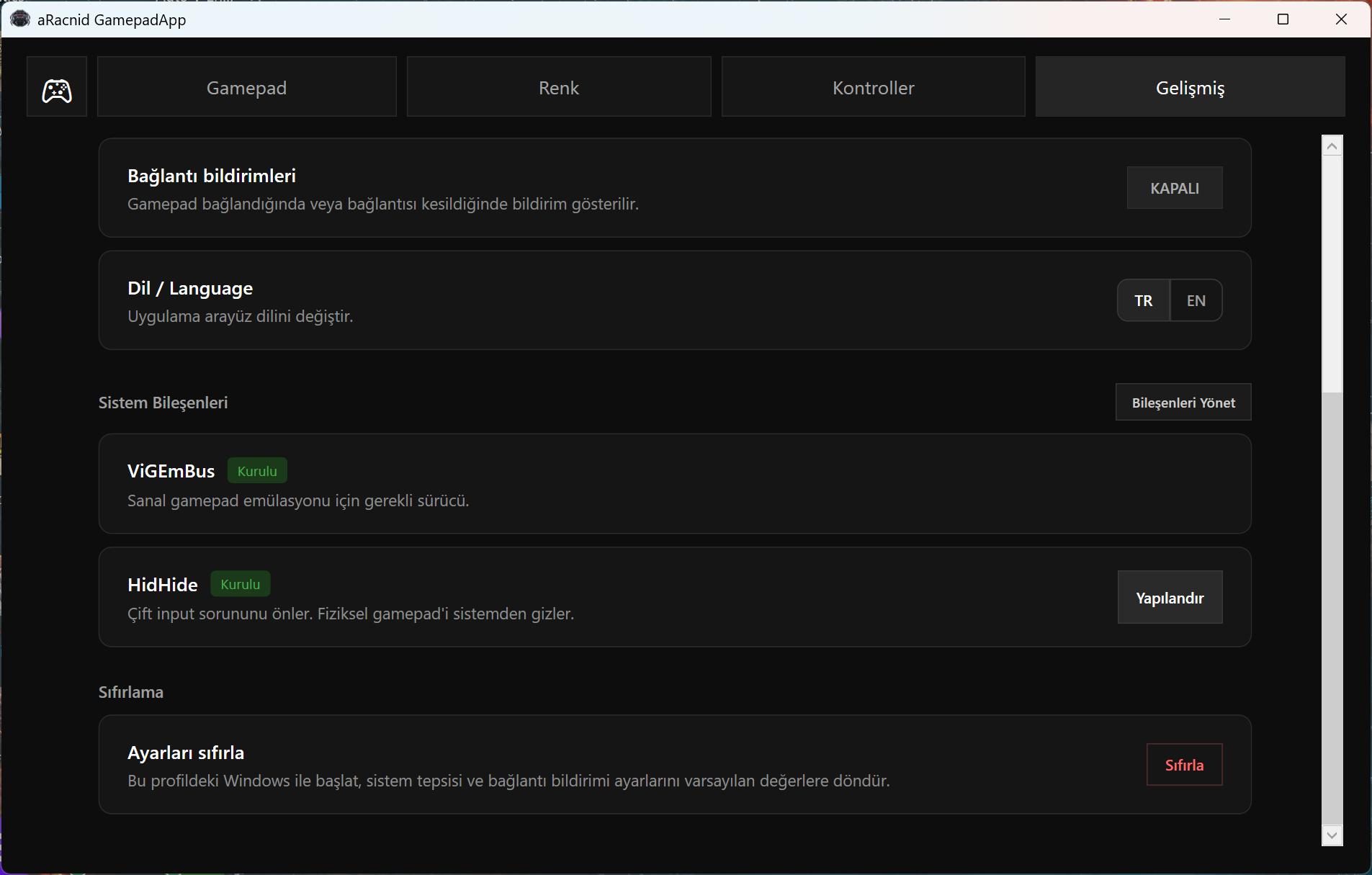
Advanced Components

Manage the drivers used for virtual controller output from inside the app. HidHide also includes a Configure action for double-input prevention.

  • Install ViGEmBus and HidHide from Advanced → Manage Components
  • Configure HidHide from aRacnid
  • Third-party components are downloaded from their official GitHub sources only when you choose to install them
aRacnid Advanced component management screen
Compatibility

Supported physical controllers

Connect supported controllers by USB or Bluetooth where the controller provides it.

PlayStation

DualShock 4 v1 · DualShock 4 v2 · DS4 USB Wireless Adapter · DualSense · DualSense Edge

Nintendo

Switch Pro Controller · Nintendo Joy-Con

Logitech

F310 · F510 · F710

Note: Logitech F310, F510, and F710 controllers may currently produce incorrect or repeated inputs in some games while using XInput mode. The cause is still being investigated. To avoid issues, we recommend using these controllers in DirectInput (D) mode. See FAQ #10 if you are unsure how to switch modes.

Virtual output DualShock 4 or Xbox 360 Controller
Not supported as physical input yet Xbox 360 / Xbox One / Xbox Series controllers and Steam Controller
FAQ

Frequently asked questions

Quick answers to the things users are most likely to need before getting started.

aRacnid supports DualShock 4 v1/v2, DualShock 4 USB Wireless Adapter, DualSense, DualSense Edge, Nintendo Switch Pro Controller, Nintendo Joy-Con, and Logitech F310/F510/F710. Xbox and Steam controllers are not currently supported as physical input devices.

ViGEmBus is required for virtual controller output. HidHide is recommended to prevent double input by hiding the physical controller from games. Both can be installed from Advanced → Manage Components.

Yes. Supported controllers can be used over Bluetooth when the controller and Windows provide a compatible Bluetooth connection. USB connections are also supported.

The Microsoft Store Web Installer is signed by Microsoft. GitHub Setup and Portable packages are currently unsigned, so Windows may show a SmartScreen warning. Download aRacnid only from the official GitHub repository or this website and verify the published SHA-256 checksums when using GitHub packages.

First, close aRacnid and connect your controller to your PC. Open HidHide Configuration and go to the Devices tab. Check the box next to your controller, then enable Enable device hiding at the bottom of the window. Finally, disconnect your controller once and reconnect it.

First, close aRacnid and open HidHide Configuration. Go to the Applications tab and click the + button in the bottom-right corner. Select aRacnid GamepadApp from your desktop and add it to the list. Then close HidHide and reopen aRacnid.

Check Advanced → Manage Components and make sure ViGEmBus is installed. If your physical controller is detected by aRacnid, make sure a virtual DualShock 4 or Xbox 360 output is selected. Close the game, keep aRacnid running, and launch the game again. If needed, disconnect and reconnect the controller once.

This is usually not an error. If Xbox 360 is selected as the virtual output, the game sees an Xbox 360 Controller and may display A/B/X/Y prompts. If the game supports PlayStation prompts, select DualShock 4 as the virtual output instead.

Make sure the required components are installed and your controller is detected by Windows. If the problem continues, open an issue on the official aRacnid GitHub repository and include your controller model, connection type (USB or Bluetooth), Windows version, and a clear description of the problem.

Logitech F310, F510, and F710 controllers may currently produce incorrect or repeated inputs, such as L1/R1 being registered more than once, while using XInput (X) mode. The exact cause is still being investigated. As a temporary workaround, move the X / D switch on the controller to D (DirectInput), reconnect it, and restart aRacnid. This issue has not been observed so far while using DirectInput mode.
GitHub

Need help or found a bug?

Open a GitHub Issue for support, bug reports or feature requests.

Open GitHub Issue